Start here · LinkDesk v0.5.0
Install MikroTik billing software with this LinkDesk guide. First, prepare your licence and host. Then follow activation, router setup, package and payment checks before serving customers.
Buy the licence and save your download
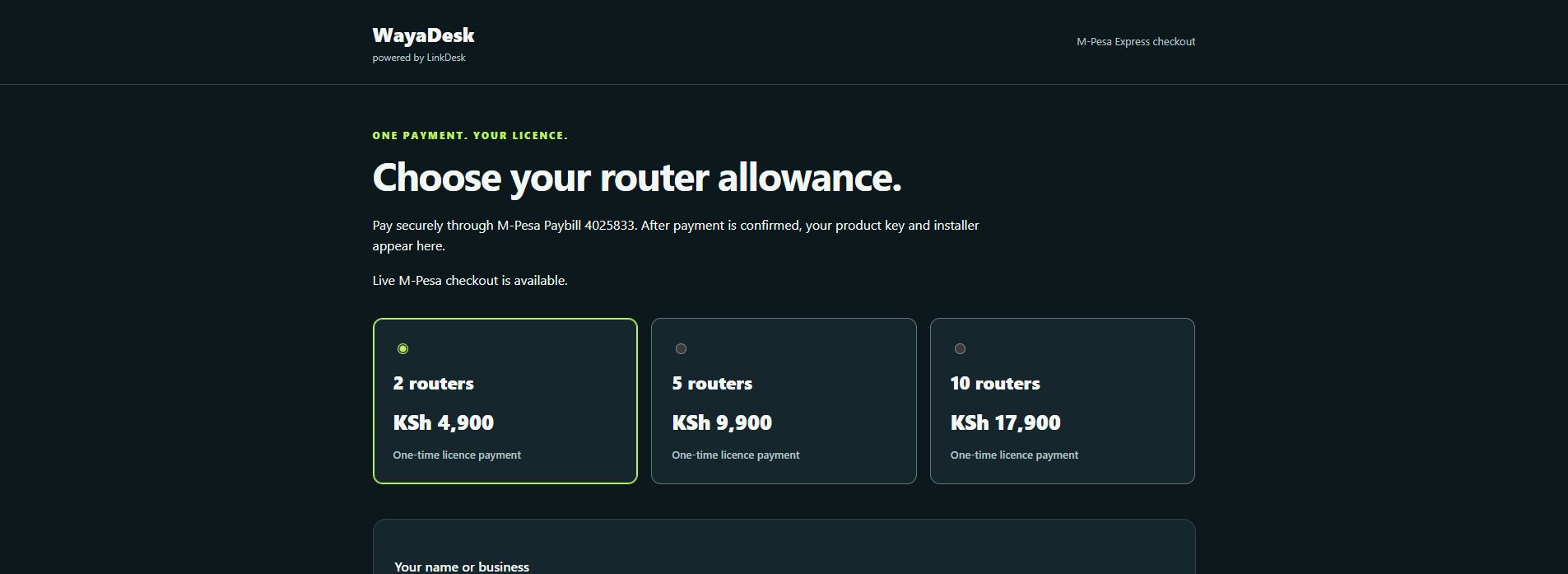
Open WayaDesk checkout, choose your managed-router allowance and check the price. Enter your name and M-Pesa number, then approve the prompt on your phone. Enter your PIN only on your phone.
After authenticated payment verification, your private order page provides the product key and customer installer. Save both and keep the order link private. Read the download guide.
Install MikroTik billing software on Windows or Linux
Prepare Python 3.11 or later and extract the whole customer ZIP. Follow the included operating-system instructions:
- Windows: run
Install-Windows.cmd, then open the installedStart-LinkDesk.cmd. - Linux: run
sh Install-Linux.shand follow the startup instructions.
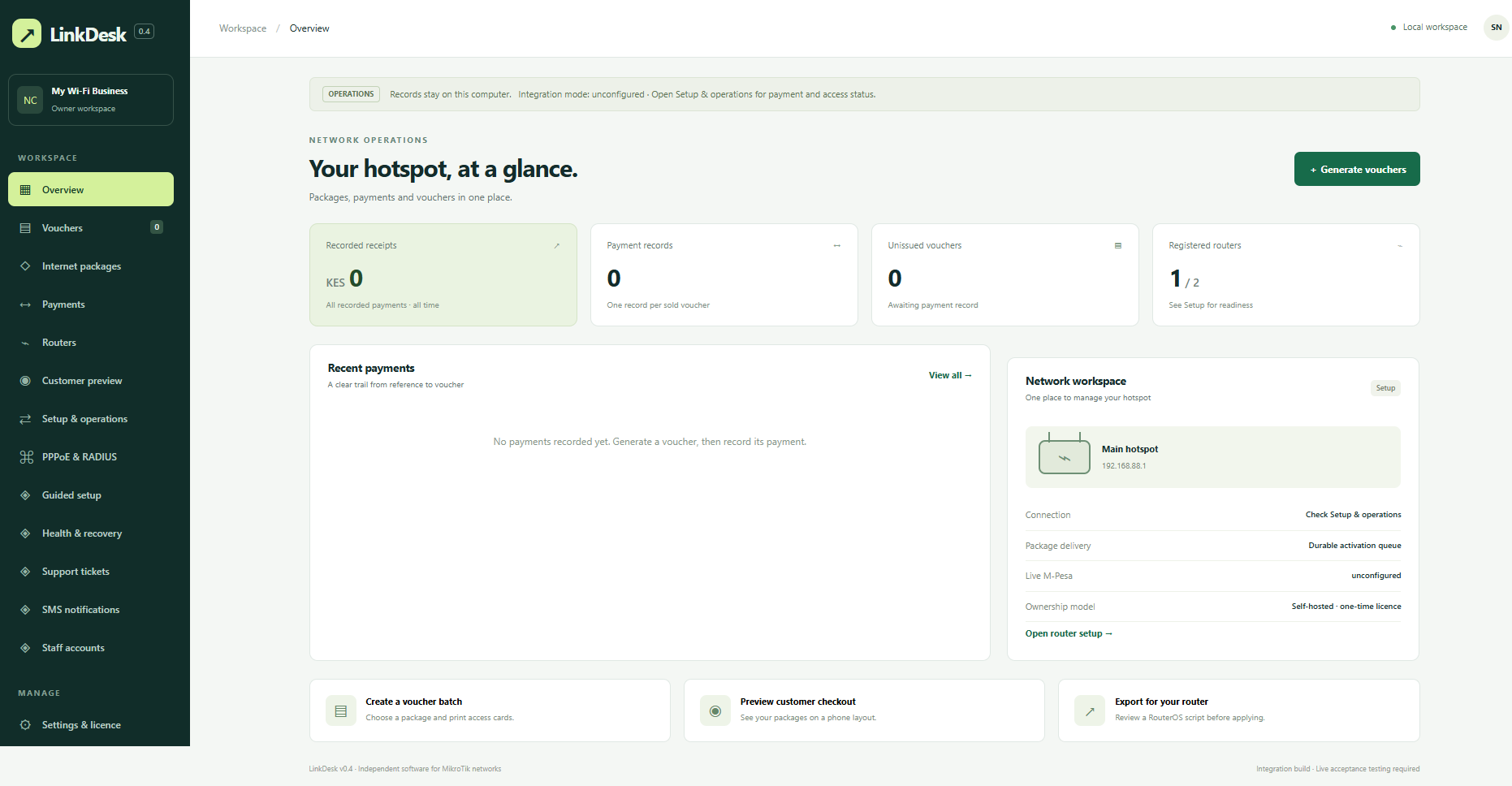
Create the administrator password when prompted. On the same computer, open http://127.0.0.1:8787 and sign in as owner. Keep the host running while using the program.
Activate and name your business
Open Settings & licence → Enter product key. Enter the key from your verified order, activate it and check that the licence is active with the allowance you purchased.
In the Business section, enter your business name and save it. Open Guided setup to complete the applicable installation checks. Follow the activation guide.
Install MikroTik billing software: connect your network
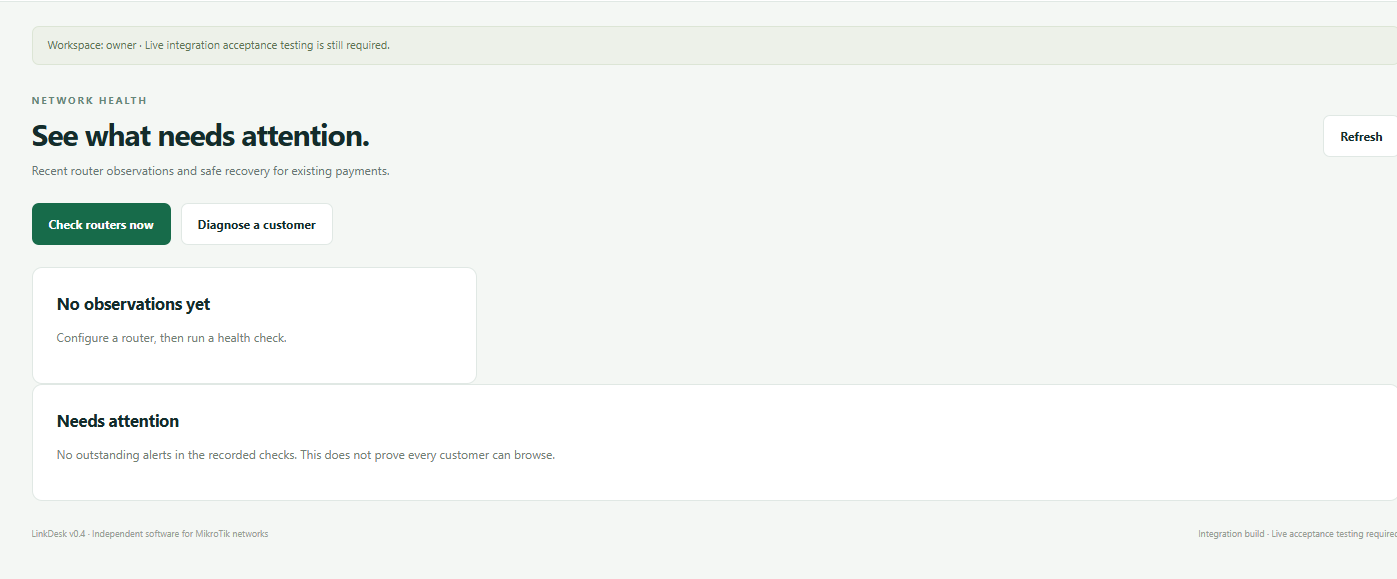
For internet access enforcement, connect the supported, configured MikroTik gateway through its intended private management path. Choose Hotspot, local PPPoE or the documented FreeRADIUS path to match your network.
The supplied FreeRADIUS integration requires a suitable always-on Linux deployment. For online subscriber checkout, configure a public HTTPS customer service while keeping administration private. Router checks · Customer HTTPS setup.
Add your internet packages
Open Internet packages → Add package. Set the name, whole-KES price, availability, billing period and supported speed or access limits. Save the package and check how it appears to customers.
Local Hotspot vouchers use a fixed duration. Persistent subscriber packages can use the supported calendar-month model. Data caps are supported only for the applicable local Hotspot voucher plans; do not assume they apply to PPPoE or RADIUS. Daily pass guide · Monthly billing guide.
Configure M-Pesa and record payments
Open Setup & operations → Configure M-Pesa. Use your own supported merchant integration, exact public HTTPS origin and credentials for the selected environment. Save and run the connection checks. Complete the payment and access pilot before relying on live subscriber billing.
For a printed voucher sale: generate the voucher for the intended package and router. After verifying the actual receipt, open Payments → Record payment and enter the exact amount and a unique reference. Printing a voucher alone does not activate it.
For a persistent subscriber, use the supported renewal workflow instead. Keep uncertain payments under review until the original transaction is verified. Merchant setup guide · Payment records.
Show the customer how to pay
- The customer joins the intended WiFi and opens the public package or private subscriber renewal page.
- They choose the package, check the amount and use their M-Pesa number.
- They approve the prompt on their phone and keep the order page open.
- Verify payment, then account entitlement, then actual internet access.
If payment is confirmed but browsing fails, inspect the access result rather than asking for another payment. Full customer payment journey · Delayed access guide.
Back up and test the full journey
Create a complete encrypted backup and keep the passphrase separately. Plan automatic startup, backup storage and recovery responsibilities. Demonstrate a restore before depending on the installation.
Pilot a successful and cancelled payment, access, renewal, expiry and a host restart on the intended deployment. The website software-purchase journey has passed a controlled live test; that does not prove your subscriber network, SMS or FreeRADIUS results. Backup guide · Acceptance checklist.